
Free Printable Color Printer Test Page
Test your printer in seconds with a free color printer test page. Check color accuracy, ink or toner output, gradients, grayscale, fine lines, text sharpness, and alignment on any inkjet or laser printer. No signup needed.
Pick your problem
Choose the matching test file.
Print at 100%
Actual Size, no Fit to Page.
Compare and fix
Match your print to the guide below.
How to Print a Color Printer Test Page
Steps for Windows, Mac, and mobile:
Everything needed to test and improve print quality, all in one place.
Find the Right Color Printer Test for Your Needs
Grayscale Color Test
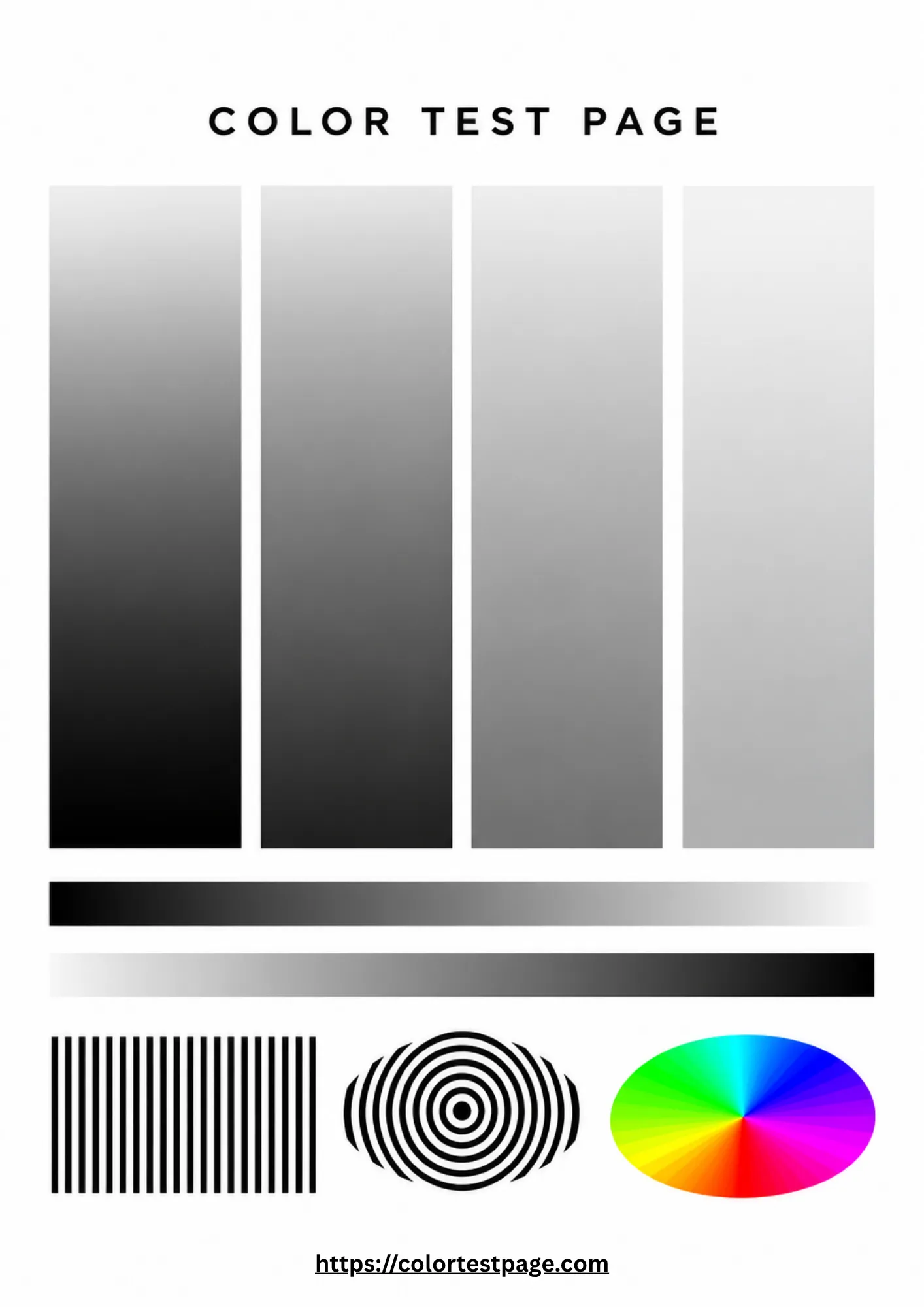
Check black density, smooth white-to-black transitions, and hidden color casts in grays.
6 Color Test
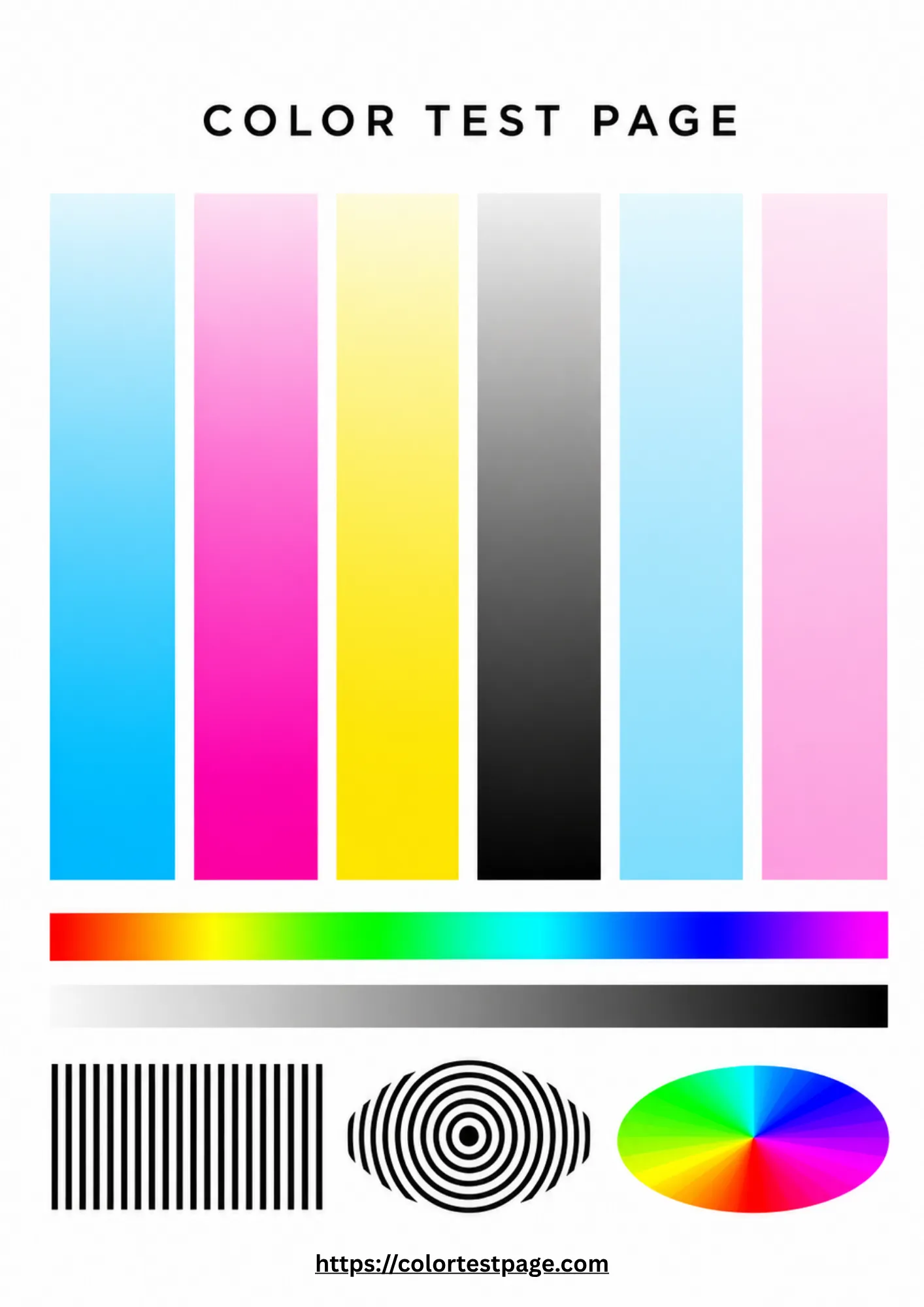
Test cyan, magenta, yellow, black, light cyan, and light magenta for photo printers with six-plus inks.
Color Photo Test
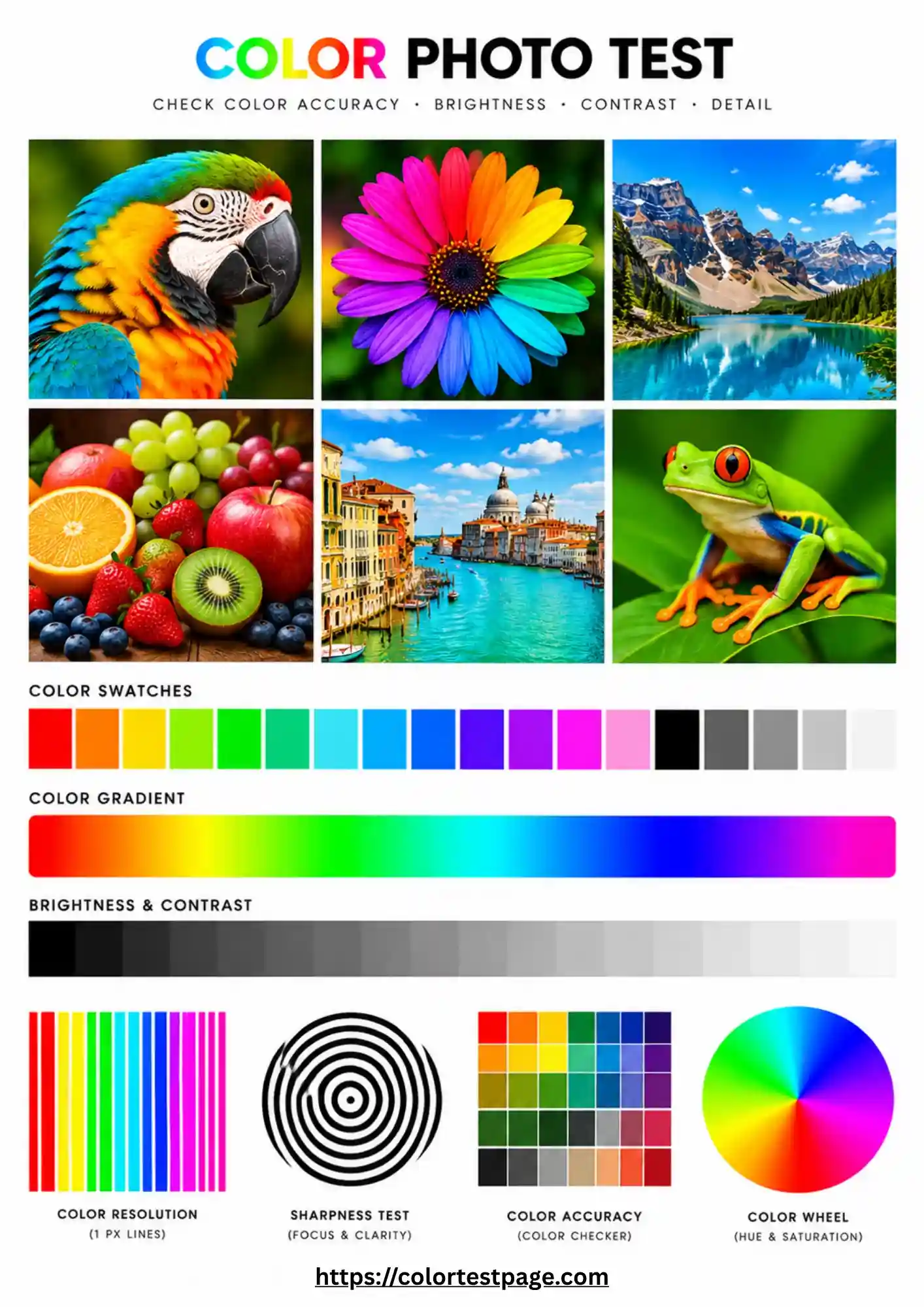
Check skin tones, shadows, gradients, and fine detail before printing photos that matter.
Nozzle Check Pattern
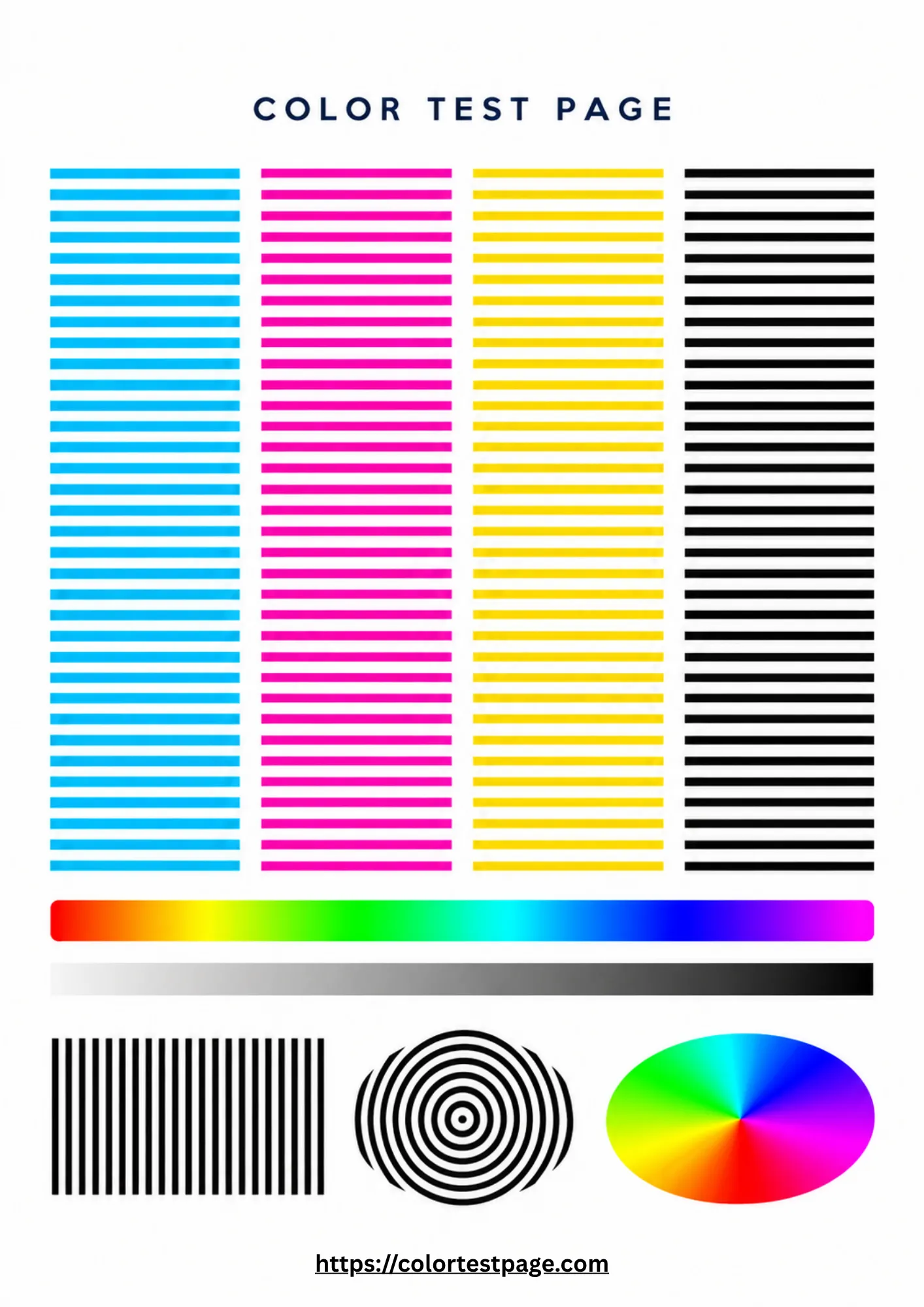
Detect clogged or missing nozzles with fine line patterns per ink channel.
Sublimation Color Test
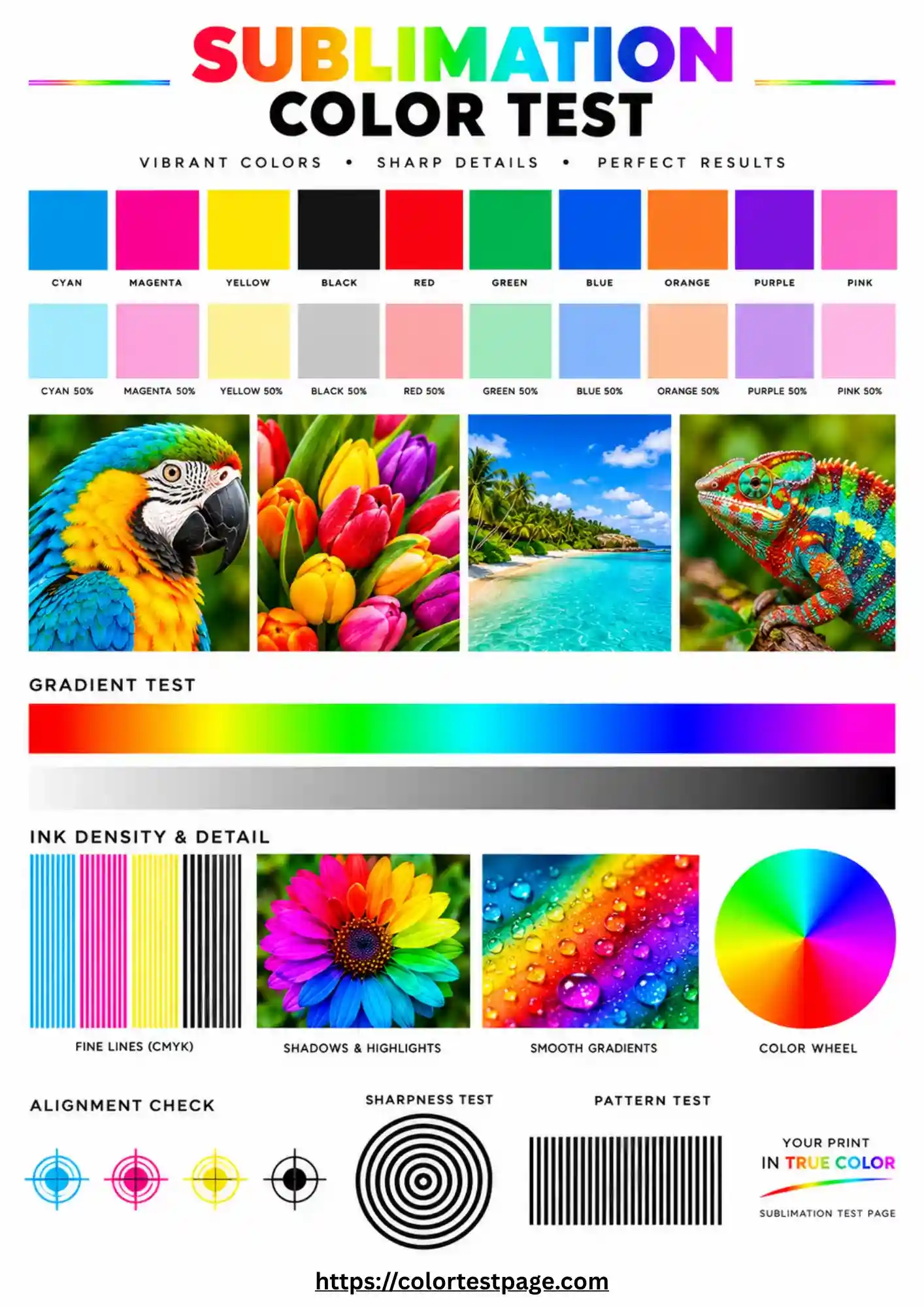
Check color separation and gradients before heat-pressing sublimation transfers.
4 Color Test Page
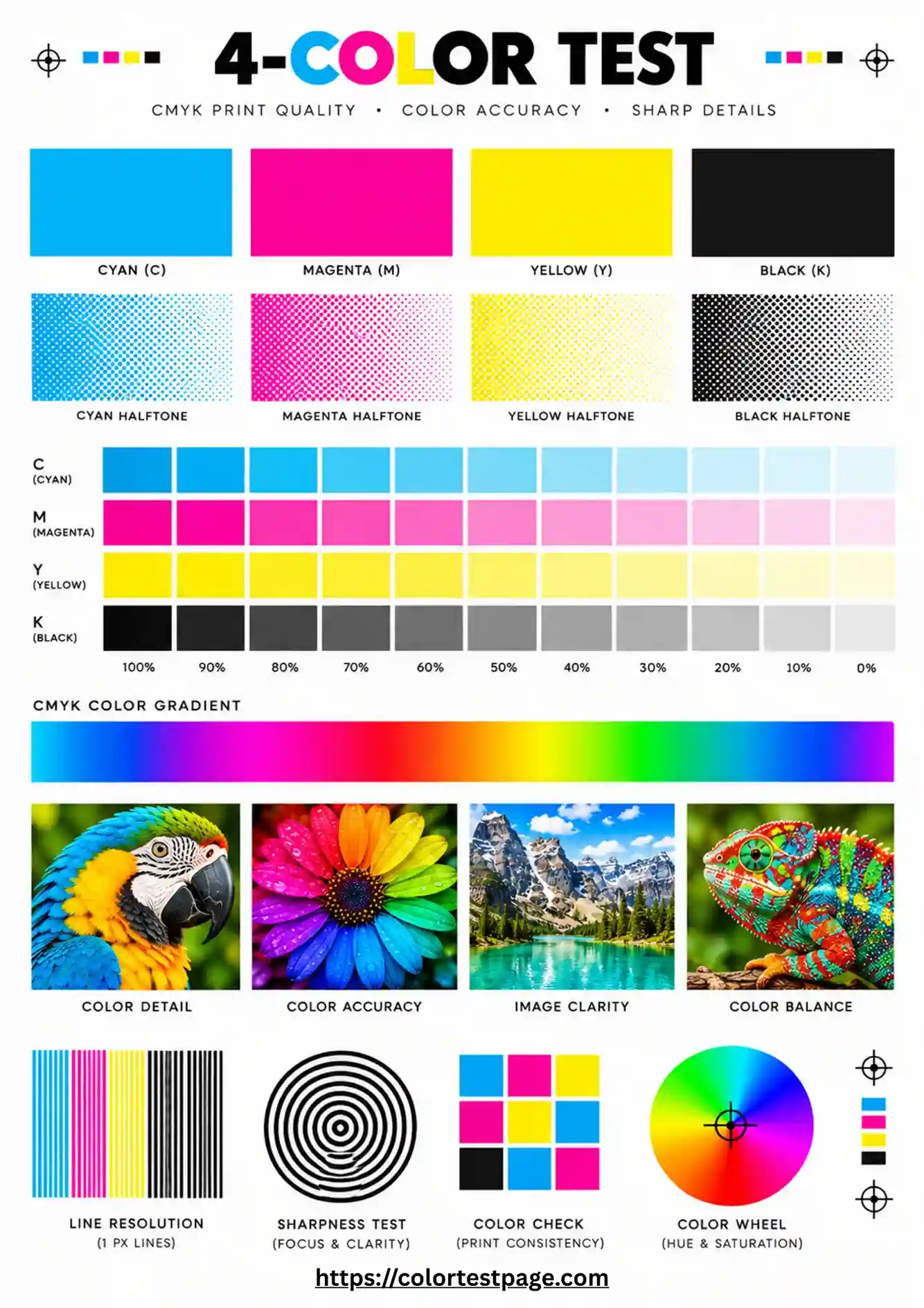
Test cyan, magenta, yellow, and black individually for consistent everyday printing.
Individual Color Printer Test Pages
If one color is missing, weak, or wrong, print that channel alone and look for uneven coverage, streaks, gaps, or fading.
Magenta Color Test
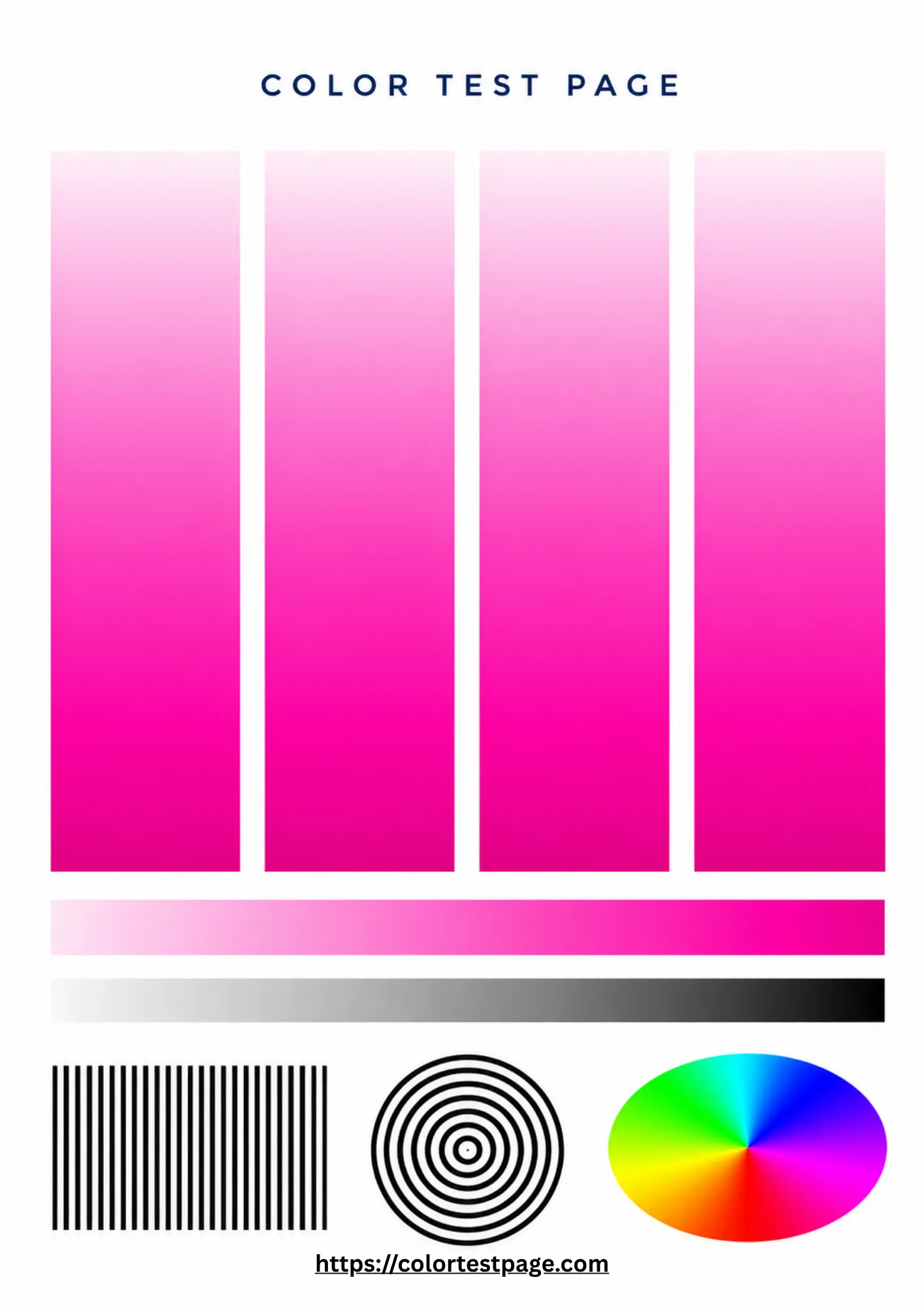
Isolate the magenta ink channel with a full-page test.
Cyan Color Test
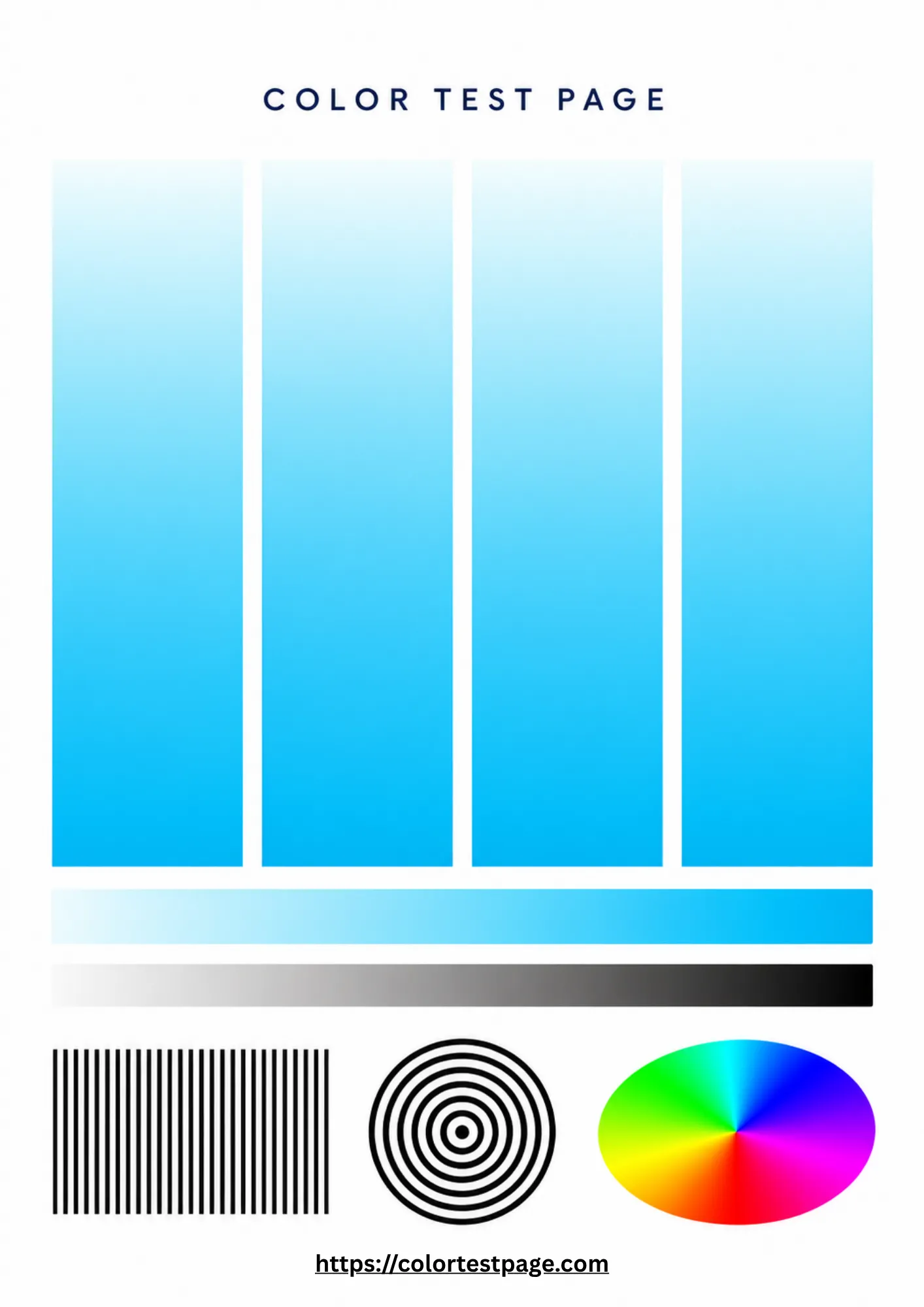
Isolate the cyan ink channel with a full-page test.
Yellow Color Test
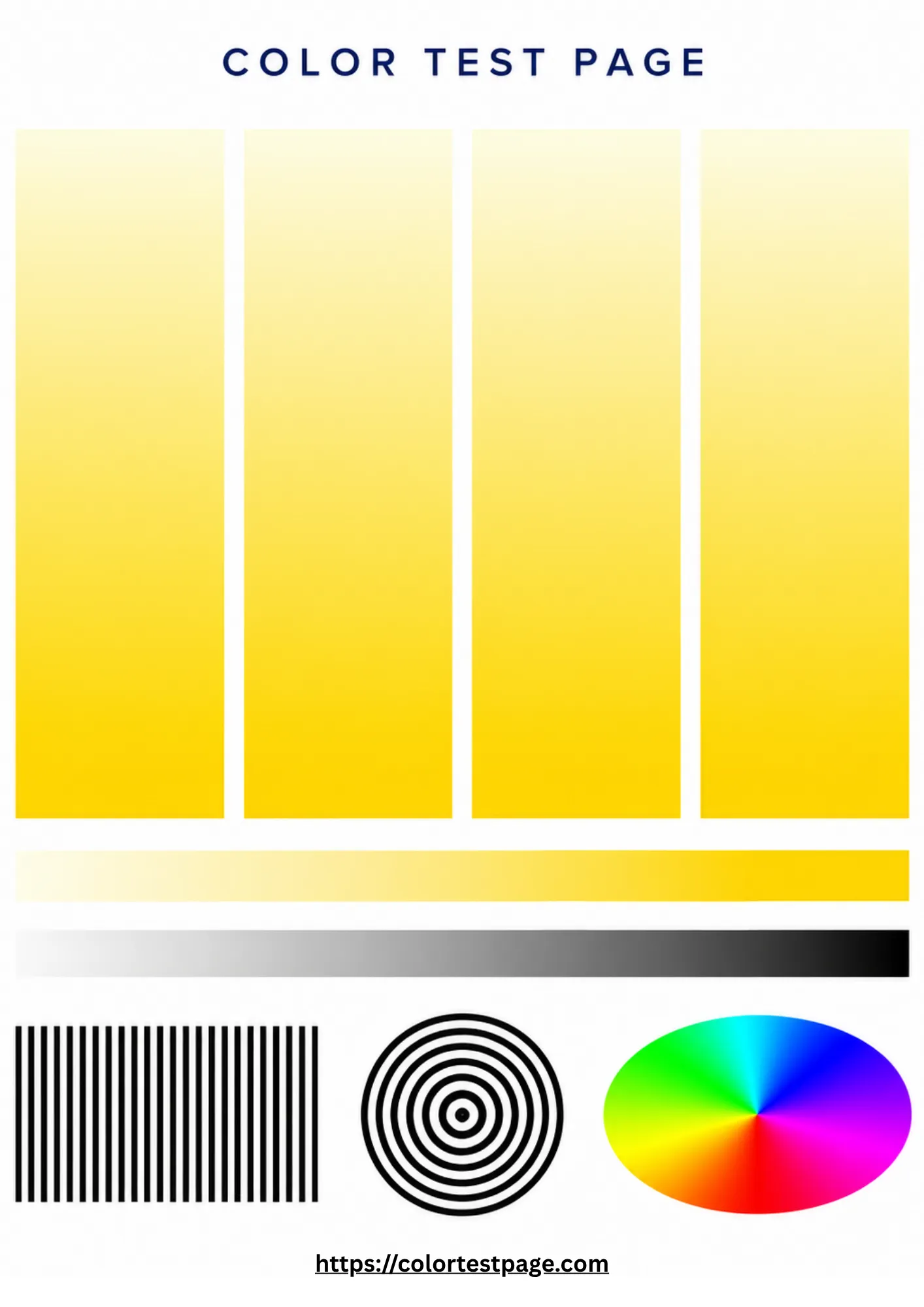
Isolate the yellow ink channel with a full-page test.
Black Ink Test
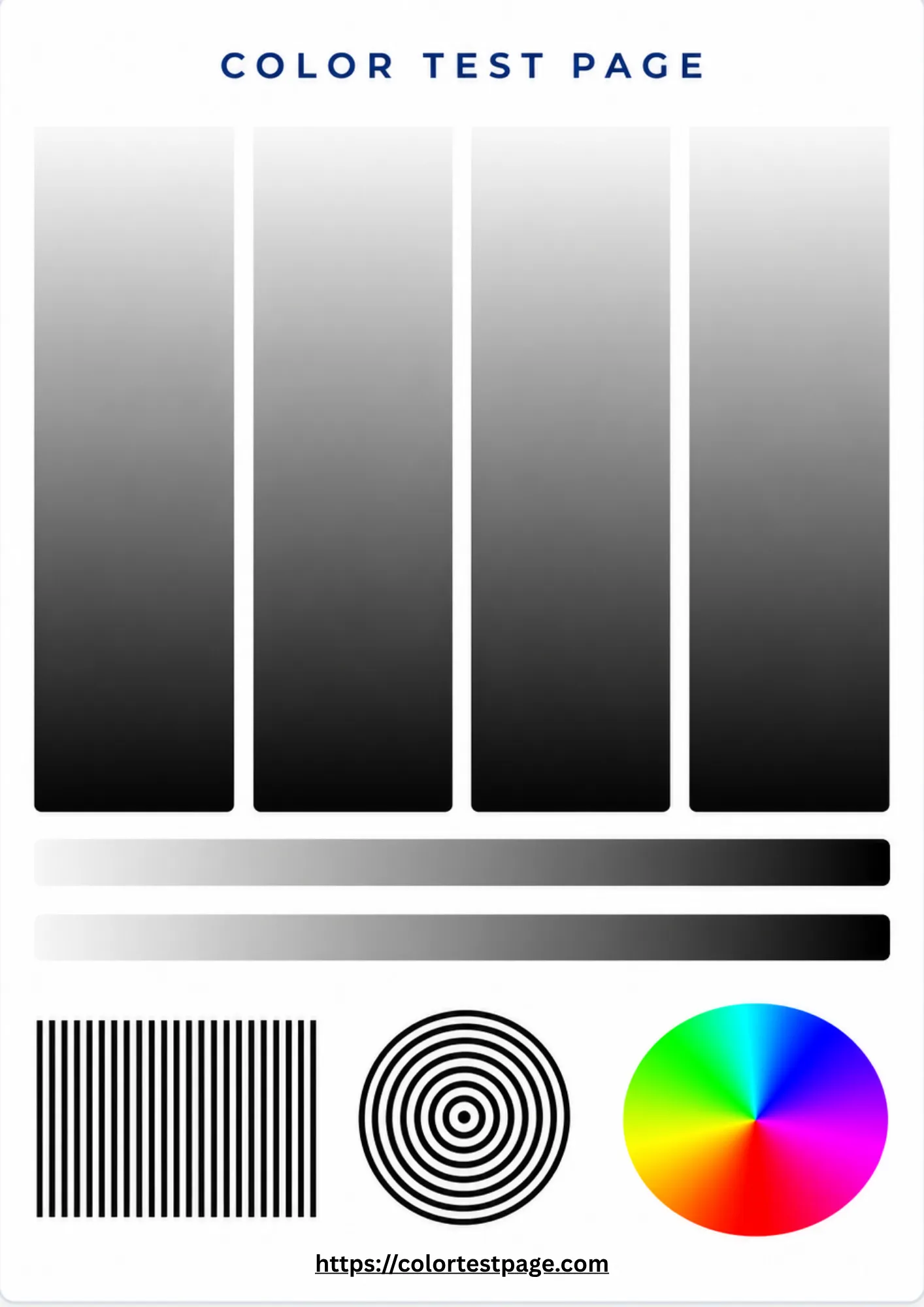
Check black density and text sharpness with a full-page test.
Printer Brand Test Pages
Choose your brand for the right test page and model advice.
Hp Printer
Test pages for HP DeskJet, ENVY, OfficeJet, and LaserJet printers.
Brother Printer
Color test pages for Brother inkjet and laser printers.
Cannon Printer
Test pages for Canon PIXMA, MAXIFY, and imageCLASS printers.
Epson Printer
Test pages for Epson EcoTank, WorkForce, and Expression photo printers.
Dell Printer
Color test pages for Dell inkjet and laser printers.
Lexmark Printer
Color test pages for Lexmark inkjet and laser printers.
Xerox Printer
Test pages for Xerox VersaLink, Phaser, and WorkCentre printers.
Samsung Printer
Color test pages for Samsung Xpress and ProXpress laser printers.
What Does Your Printer Test Page Show?
Read your print before replacing cartridges. Here is what each symptom means.
Missing Color
An absent color points to an empty cartridge, clogged nozzle, or faulty printhead. Print that color alone to confirm.
Lines or Banding
Horizontal lines and gaps usually mean clogged nozzles or uneven ink delivery. Run a cleaning cycle, then reprint.
Wrong Colors
Off colors suggest wrong paper settings, color-management mismatch, or aging ink. Check the driver settings first.
Faded Colors
Faint output comes from low ink or toner, clogged nozzles, or economy settings. Switch to normal or best quality.
Blurry Text or Images
Soft text points to misalignment, the wrong paper type, or a printhead that needs attention.
Uneven Color Coverage
Light patches inside solid color mean ink is not reaching the paper evenly. Clean the printhead.
Misalignment
Shifted lines or fringed edges mean the printer needs an alignment from its maintenance menu.
CMYK vs RGB Printer Tests
CMYK
Your screen and printer speak different color languages. Pick the test matching your workflow.
CMYK means cyan, magenta, yellow, and key (black): the inks inside your printer. Use a CMYK test to inspect each ink channel and confirm every cartridge is firing.
RGB
RGB means red, green, and blue: the colors your screen uses. Use an RGB test to see how photos and designs translate from screen to paper.
Pro tip: let the printer manage colors, match the paper-type setting to your paper, and print at the highest quality.